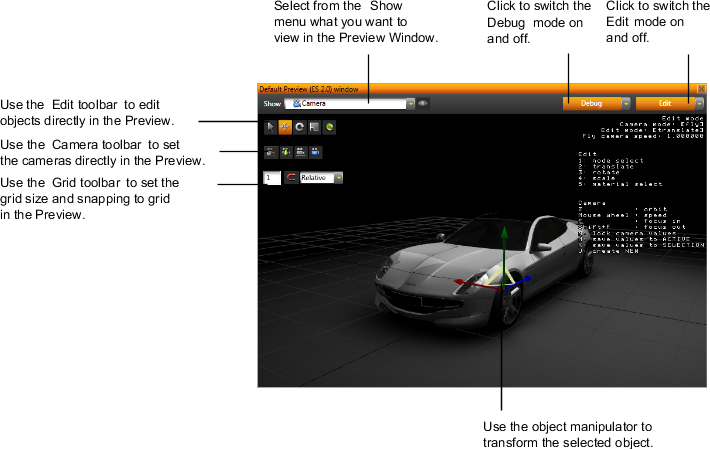
The Preview shows in real time what the project you are working on looks like. In the Preview you can directly move, scale, and rotate some objects, and see the structural information for your project and individual objects.
Use the Edit mode to directly edit some objects in the Preview.
For example, you can move, resize, and rotate objects in a scene by dragging the object manipulators. Once in the Edit mode you can also freely move around the scene to see what it looks like from different angles. If you find a view that better suits your application, you can save that position to the active camera in your scene, or create a new camera. See Editing in the Preview.
To switch the Edit mode on and off, click Edit.
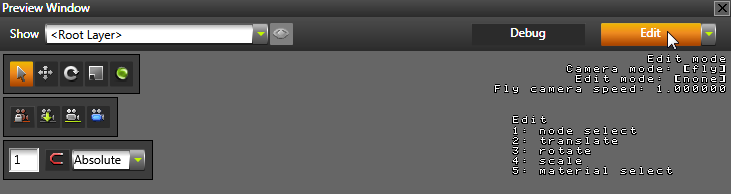
When you enable the Edit in the Preview, you also enable the free camera. The free camera allows you to move around the scene starting from the point of the active camera. See Setting the position of cameras in the Preview.
Use these free camera controls to move around in the Preview.
| Control | Description |
|---|---|
| W | Move forward. Hold down Shift to double the speed. |
| S | Move backward. Hold down Shift to double the speed. |
| A | Move left. Hold down Shift to double the speed. |
| D | Move right. Hold down Shift to double the speed. |
| Q | Tilt left. |
| E | Tilt right. |
| Click and drag the left mouse button | Rotate |
| Click and drag the right mouse button | Pan |
| Mouse scroll wheel | Set camera speed. |
| Hold down Z | Activate the orbit camera. Use the orbit camera to rotate around the center point of the Preview. |
| Hold down Z and mouse scroll wheel | Zoom |
| F | Focus on the object selected in the Project. |
| Shift+F | After focusing on the object selected in the Project, focus out. |
Use the Debug mode to see various debug objects, such as layouts, bounding volumes, layers and performance information for your application.
To switch the Debug mode on and off, click Debug.
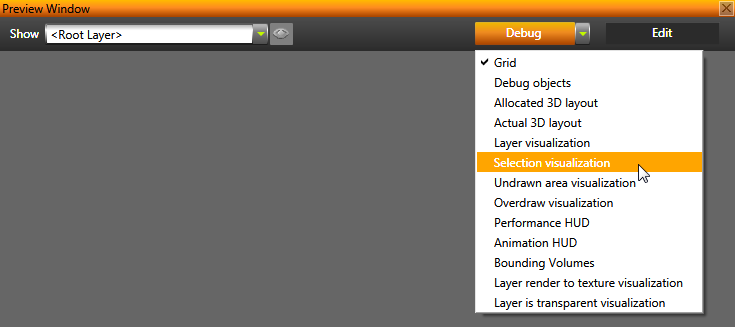
When in the Debug mode, click the drop down menu to select what you want to view in the Preview. See Debugging in the Preview.
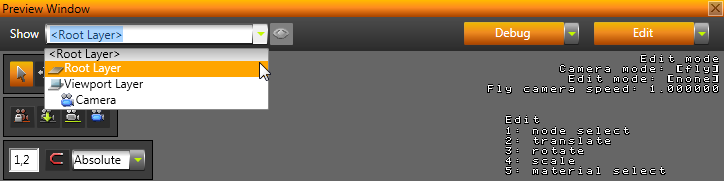
Using the Show drop-down menu you can select what you would like to view in the Preview. By default this is the root layer of your project which shows the project the way it looks when run as an application. With this drop-down menu you control what parts of your project you want to view in the Preview, such as, for example, layers or views from different cameras.
When you are creating your Kanzi application in Kanzi Studio, you will often want to return to the initial state of your application. In the initial state all transformations, animations, and other local property value changes in your application are returned to their initial state.
To return your Kanzi application to its initial state, restart the Preview with Ctrl+F8. See Controlling your application in the Preview.
Creating, organizing, and importing content
Controlling your application in the Preview